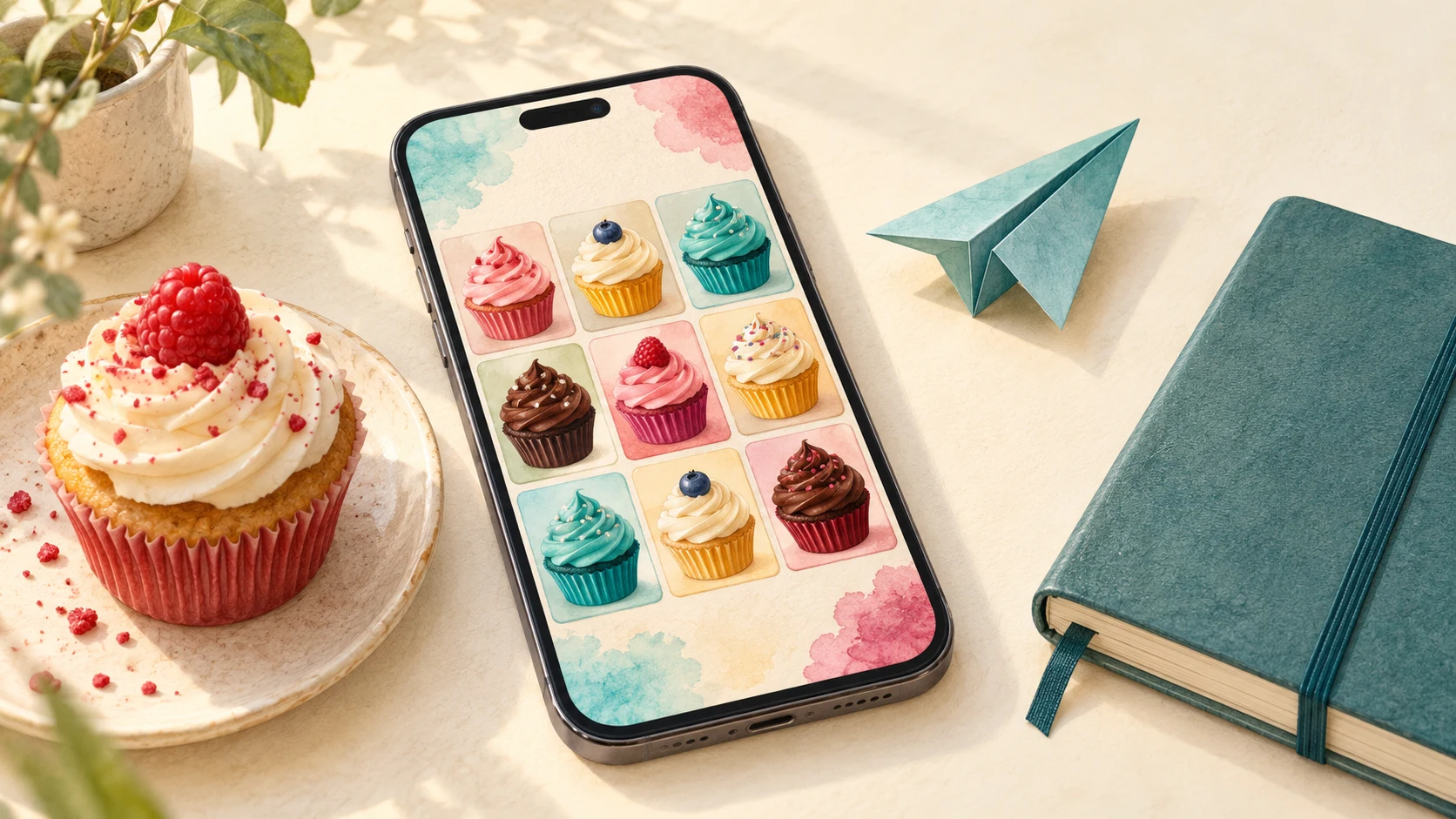
Play the GridPuzzles Cupcakes web game in your phone's browser, then add a Home Screen icon if you want a quicker way back. This is the web version, so these steps don't require an APK download.
Before a journey, open the game while online, make a move, then check that it reopens and accepts a move after you disconnect. Use the same phone and browser for that check. The steps below describe this web version, not a separate Cupcakes app sold in a store.
Add the web version on iPhone
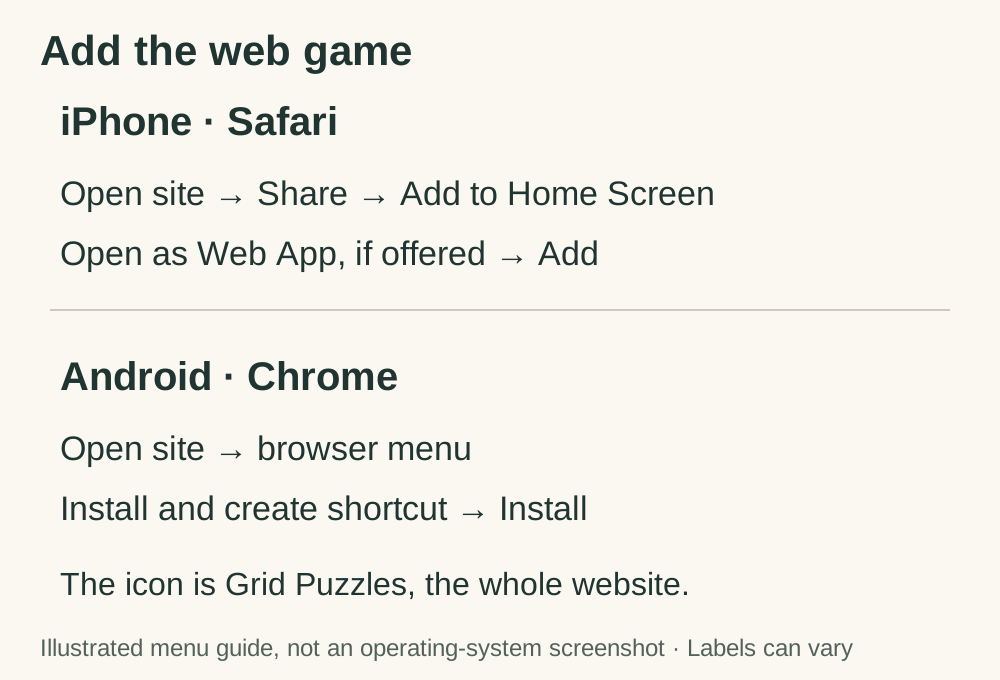
Open the game in Safari. Open the Share sheet, either directly from the toolbar or through the Page Menu, depending on your Safari layout. Choose Add to Home Screen. If offered, turn on Open as Web App, then tap Add.
Apple's web-app instructions explain the current controls and how to add the action if it is missing from the Share sheet. A site opened inside another app may not offer the same menu, so start with Safari rather than an embedded preview.
Add it on Android
In Chrome, open GridPuzzles and use the menu beside the address bar. Google's current instructions call the route Install and create shortcut, then Install. Follow the confirmation shown on your device. Some browser versions use Add to Home screen instead.
The icon belongs to Grid Puzzles, the whole website. It may open the site's home page, where you can choose 2048 Cupcakes. Before closing your original browser tab, compare the board there with the one opened from the new icon. Don't assume they share progress on every platform.
If the installation choice isn't shown, you can still bookmark the game and play in the browser. Use Google's web-app help for the controls available in your version of Chrome.
Check offline play before relying on it
Cupcakes is listed among GridPuzzles' offline games. The useful check is what happens on your phone, especially if you have just installed the site or recently cleared browsing data.
Open Classic while connected and wait for the complete tray to appear. Make one move so there is a board you can recognise. Disconnect from the internet, return to the game and reopen or reload it. Try another swipe. Seeing only an icon or an old picture of the page isn't enough: the board must open and respond.
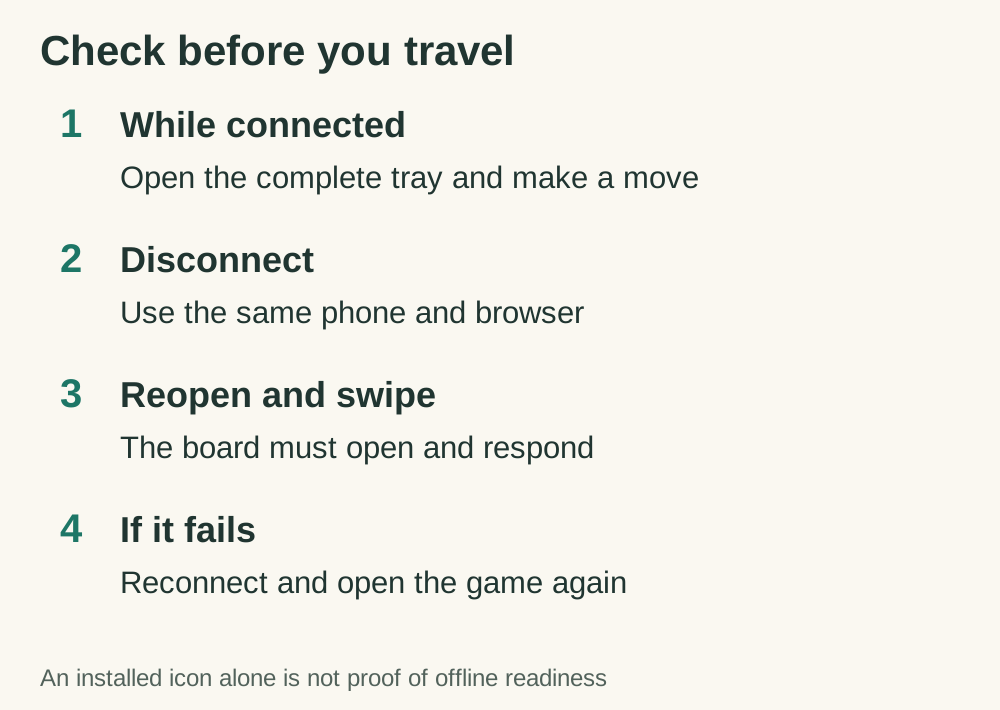
If the page doesn't open, reconnect and open it again before travelling. Browser settings, private browsing and removed website data can affect what remains available. Don't delete data to fix an offline problem if you want to keep the board you were playing.
Know which board you are returning to
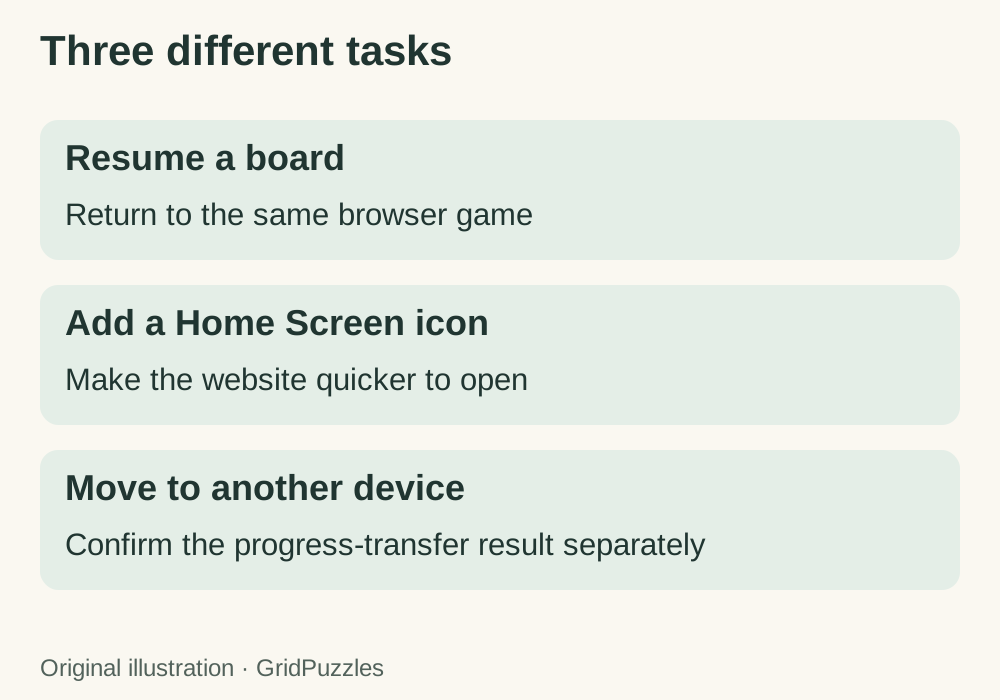
The game saves your moves in the browser you use. Classic modes with different tray sizes keep their own games. Moving from a 4×4 tray to a 5×5 tray isn't a way to enlarge the same board.
Adding a Home Screen icon is also different from transferring progress to another phone. Open your account for account options. For the separate transfer action, choose Transfer progress in the site's footer. Keep your original browser's game until you have confirmed the result on the new device.
Account actions and embedded YouTube videos need a connection even when the game board is available offline.
Related video
How to Add Website to Home Screen on iPhone by Gauging Gadgets. This Safari walkthrough demonstrates adding a website to the Home Screen. Use the offline check above separately.